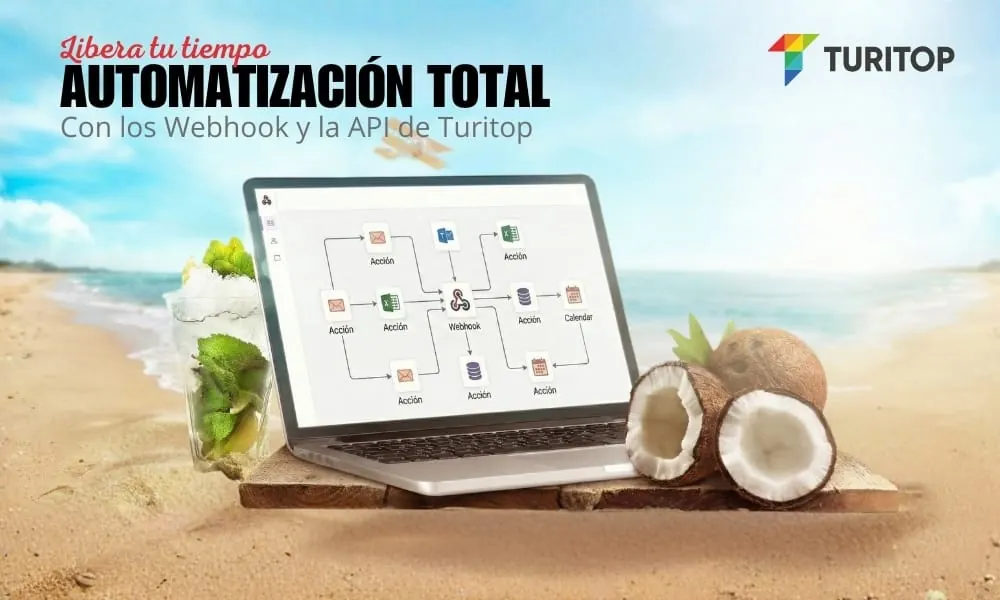














TuriTop can integrate with other systems via Webhooks. In this tutorial, we’ll explain how to retrieve data from TuriTop and send it to Zapier. Zapier is a tool that lets you connect the apps you use every day to automate tasks and save time. With Zapier, you can connect any of its more than 1,500 integrated apps to create your own automations. Plus, it’s quick and easy to set up—you don’t need to be a developer; anyone can create a Zap!
Set Up Your Zapier App (ZAP)
Create a Zapier account here. If you already have one, log in here.
Once you’re logged in, click the MAKE A ZAP button at the top of your screen.
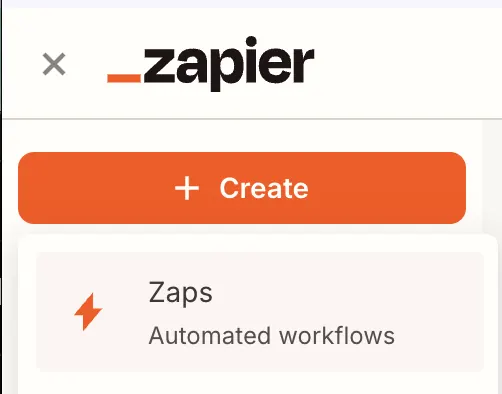
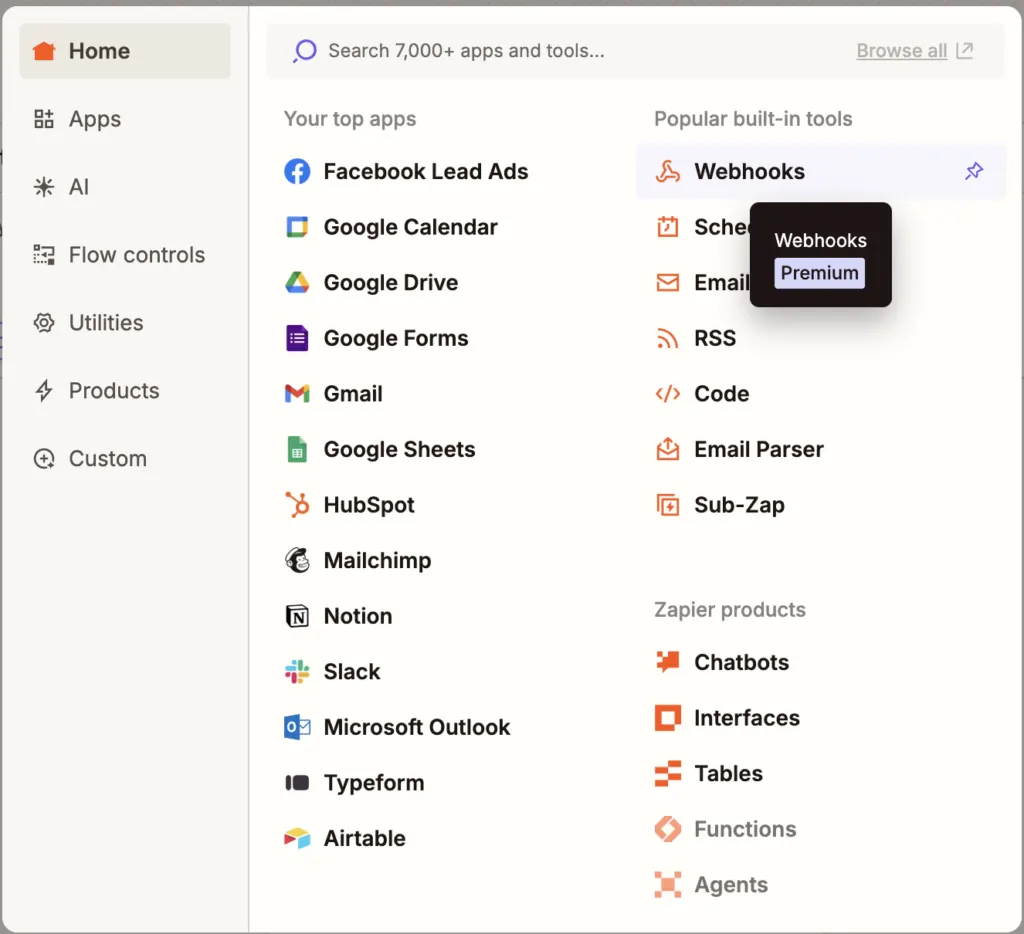
Now you can select or search for apps. Select the app called WEBHOOKS.
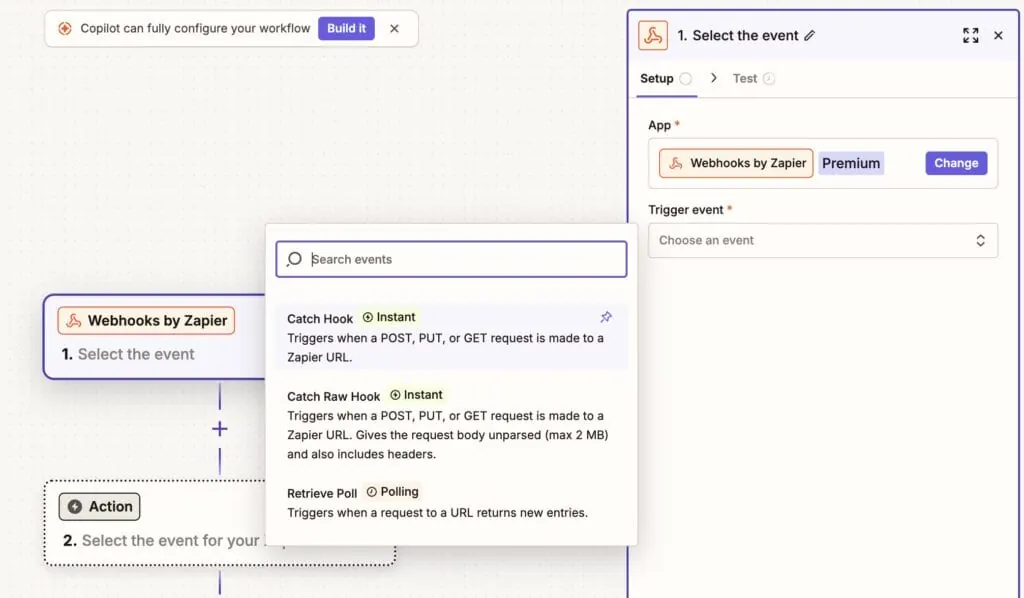
In the left sidebar, you’ll see your progress. At this point, you should be on Step 1: Trigger, in the “Choose Trigger” section.
In the main content section, select Catch Hook and click Save + Continue.
 Screenshot
You’ll now be taken to the editing options step. This is optional, and you can configure it later. Click Continue.
You are now on the “TEST THIS STEP” page. Zapier will display a URL similar to this: https://hooks.zapier.com/hooks/catch/5117722/oyu2hhi/
This URL will be used to send TuriTop booking information to Zapier. From there, Zapier can do whatever it wants with the data.
Let’s go back to TuriTop now.
Configure TuriTop to Send Information to Zapier
Please note: TuriTop Webhooks are only available for the Standard and Elite plans. See pricing
Next, log in
Let’s go through this step by step. Log in to your TuriTop account. Go to the Company tab >>> Components / Integrations >>> Webhooks. Then, copy the URL that Zapier created for you, paste it into the URL field, and choose the action you want to perform.
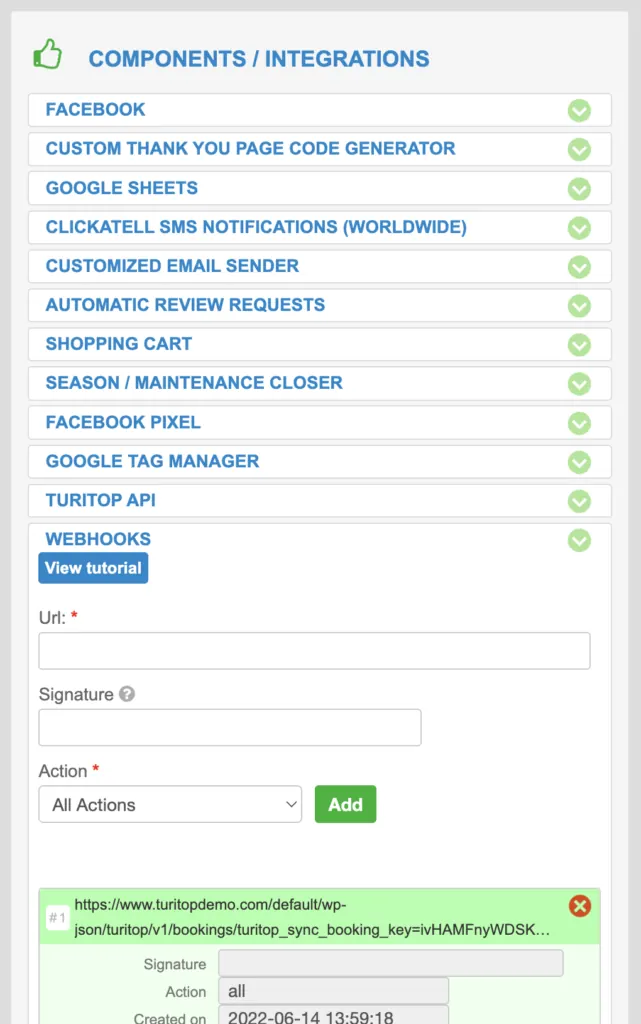
You’ll now be redirected to the Edit Options step. This is optional, and you can configure it later. Click Continue.
- All: This action will send all data to the destination URL.
- New booking: This will send information about a newly created booking.
- Update booking: This refers to the data sent when a booking is edited. There are two ways to edit a booking: via an API call or a back-office call, respectively.
- Delete Booking: When you delete a booking, you’ll be notified via a webhook.
Click Add. And that’s it—you’re now sending data to Zapier.
- Restore booking: When you restore a booking, this will be notified via a webhook call.
Full details on the implementing webhooks in Turitop can be found here
If you’d like us to add more actions, feel free to request them through your Turitop Dashboard >>> More tab >>> Request a New Feature.
Test Your Webhook
Go back to your ZAP and click TEST THIS STEP.
Go back to TuriTop (in another browser tab) and enter a test booking. This will send the data to your ZAP. You can now proceed to step 2 in your ZAP. For example, you could:
- Connect TuriTop to Xero or QuickBooks to create new invoices when a new booking is received.
- Connect TuriTop to Pipedrive or any other CRM to create a customer record when a new booking is received.
- Connect TuriTop to Gmail to send an automated email when a booking cancellation is received in TuriTop.
- And much more!
An acknowledgment that smells of volcanic soil, high-altitude wine, and the hard work of the people who make it all possible…